Blog / Guides
Run Flutter on a real iPhone without Xcode
How to run and test a Flutter app on your own iPhone without Xcode, an emulator or a cloud account, what still needs Apple's tools, and where the limits are.
You can see and use your Flutter app on a real iPhone without opening Xcode, starting a simulator or making an account anywhere. This post shows how, and it is just as clear about what you cannot do this way: it is a way to develop and test on the phone in your hand, not a way to build an App Store release.
Zapbird is the tool we make. It runs your project in an app on your iPhone and updates it every time you save. Where a step has its own page in the documentation, we link to it, so you can check every claim.
The short answer
Yes, with a limit. Install the Zapbird app on your iPhone, run one command in your Flutter project, scan the QR code it prints, and your app runs on the phone. Save a file and the phone updates. There is no emulator, no native build and no signing to set up while you develop.
The limit is that this is a development preview. When you are ready to put the app in the App Store, you will need Apple's own tools for the release. Zapbird helps you prepare for it, and we say how in the section on store builds below.
Why running on an iPhone usually involves Xcode
A Flutter app on an iPhone is a native iOS app. Normally your computer builds it with Apple's tools, signs it with your identity and installs it on the device. That is why a plain flutter run to a physical iPhone goes through Xcode, and why it only works on a Mac. Many developers search for a way around it, and the usual answers are to rent a Mac, use a build service or use a cloud device farm.
Zapbird takes a different route during development. The native part, the Zapbird runner, is already installed on your phone. Your computer compiles your Flutter code to bytecode and sends that to the runner, which runs it. Nothing new is built into an iOS app each time you save, so the build, signing and install steps are not part of your loop. How Zapbird works goes through it.
What you need
- An iPhone and a Mac or 64-bit Windows computer with Flutter on it. Both must be on the same Wi-Fi network.
- Flutter 3.41.x (Dart 3.11). Zapbird is built for this version, and the quick start shows how to stay on it.
- The Zapbird app on your iPhone, with Trusted Flutter apps turned on in its Settings.
- On Windows, Git for Windows, which includes OpenSSL.
You do not need Xcode, Android Studio, an emulator or a Zapbird account. The FAQ says so in one line.
How to run your Flutter app on your iPhone
Here is the short version. If this is your first time, the step-by-step first app guide takes you through each step with more detail.
1. Install the command. On a Mac, in Terminal:
$ curl -fsSL https://get.zapbird.dev/cli/install.sh | shOn Windows, in PowerShell:
$ irm https://get.zapbird.dev/cli/install.ps1 | iexThis also installs the runner SDK, the compiler files that match the app on your phone. Check it with zapbird --version and zapbird sdk list. The install guide covers the other ways, including Homebrew.
2. Set up the phone. Open the Zapbird app on your iPhone. In Settings, turn on Trusted Flutter apps.
3. Create or open a project. For a new one:
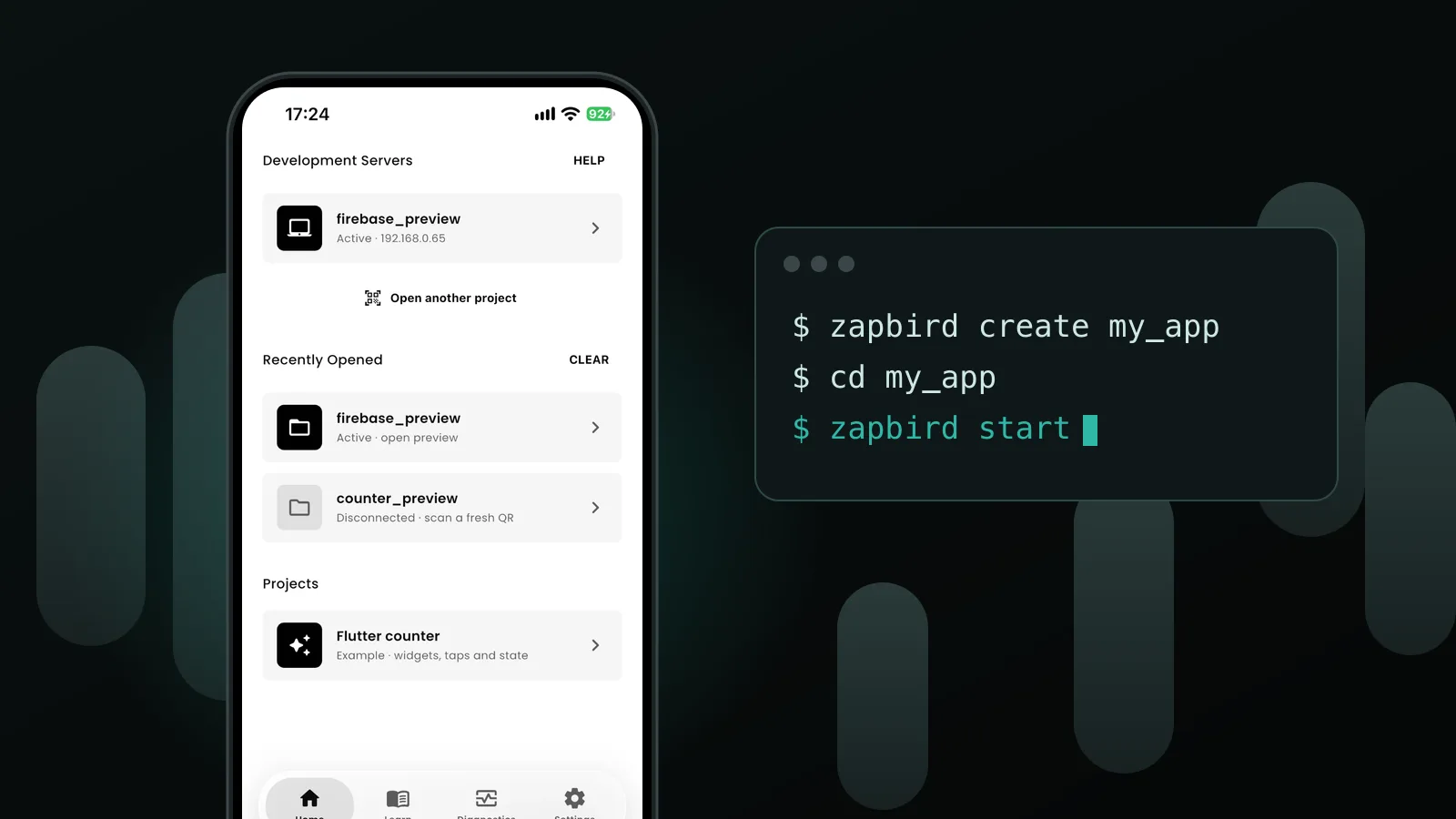
$ zapbird create my_app
$ cd my_app
For a project you already have, go to its folder. You can also pass it with zapbird start --project <folder>; see Work with another project.
4. Check it, then start it.
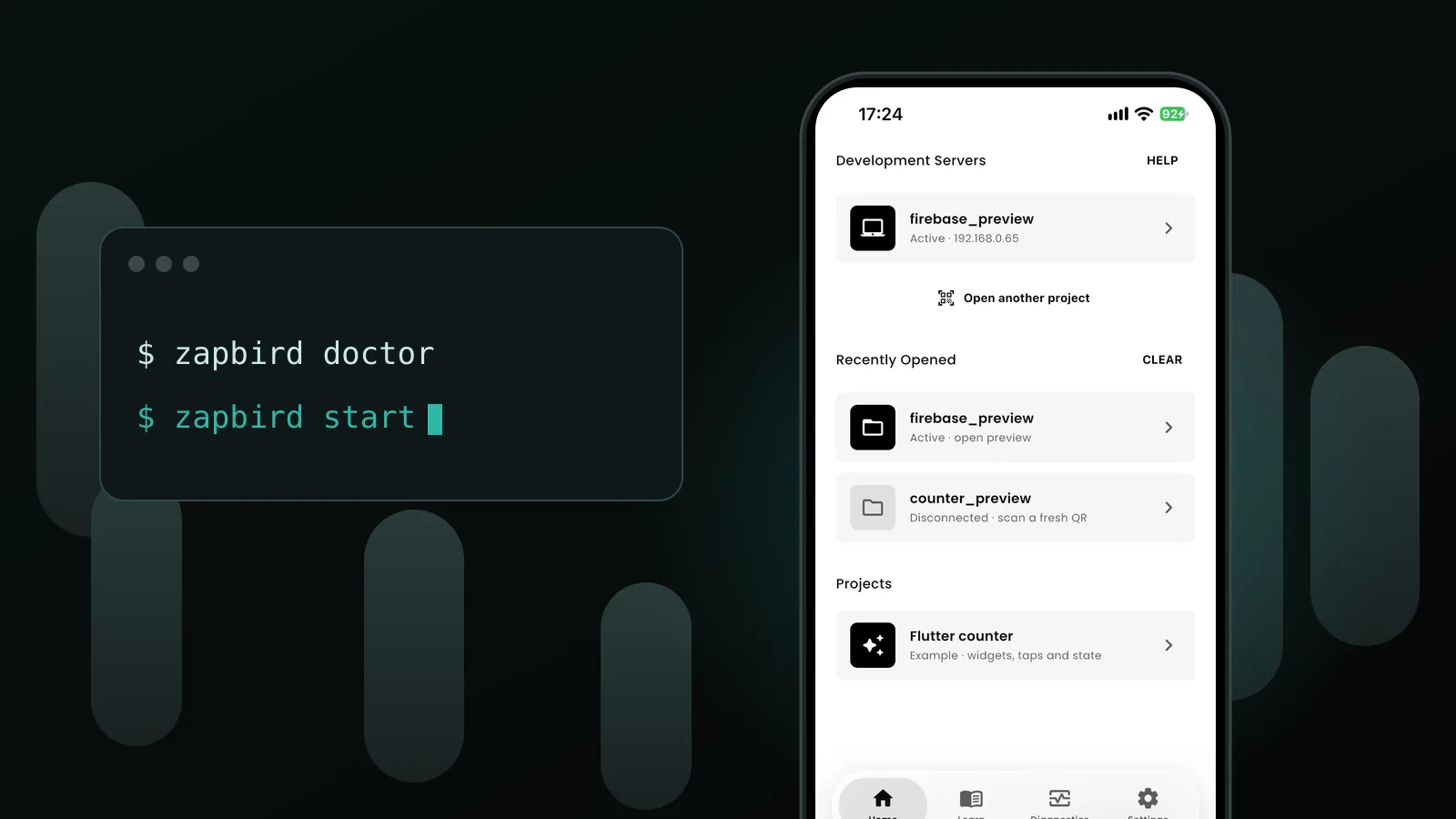
$ zapbird doctor
$ zapbird start
Doctor looks at your network address, the project, Flutter, the SDK and your packages, and says how to fix each problem. zapbird start compiles your app and prints a QR code. Keep that terminal open.
5. Scan and approve. In the Zapbird app, scan the QR code and approve the project. Your app now runs on the iPhone. Change something in lib/main.dart, save, and watch the phone. Connect your phone covers the other ways to pair if the camera cannot read the code.
The QR code holds a secret, so do not post it. It works for 24 hours while the server runs.
What you can test this way
Anything the runner supports. Native code cannot be downloaded onto a phone, so the packages that use it are built into the runner, and your project can use them without any native setup. The Native APIs page lists them, with the version of each. The runner can ask iOS for Bluetooth, camera, contacts, location while in use, microphone and notifications.
That makes the real-iPhone loop useful for the things an emulator hides: how touch and scrolling feel, how text looks at your phone's size, how the keyboard behaves, and how the app looks in light and dark mode. It is also why some features, like Sign in with Apple, are best tried on a real device. We built a small app that does that in Add Sign in with Apple to a Flutter app, and test it on a real iPhone.
Errors show on the phone with the file and line, and the same message prints in your terminal with keys, tokens and passwords hidden. A compile error never replaces the last working version, so your app keeps running while you fix it. See Keep the session moving.
What this does not replace
Be clear about the edges before you rely on it.
- It is not an App Store build. Zapbird is a development tool. It does not review, approve or certify your apps, and running an app in the runner does not mean it will pass a store review.
- Packages outside the runner need a store build. If your project uses a native package that is not on the Native APIs list, the runner cannot run it. The docs say such packages need a store build.
- Some setup only you can do. For a release, things like API keys and Xcode capabilities are yours to set up. Zapbird names them but cannot do them.
What Zapbird does help with is the step before a release. zapbird.yaml lists the permissions your code needs, found from the packages you import, and zapbird config apply writes them into ios/Runner/Info.plist and the Android manifest. zapbird release check then looks for what the stores refuse, such as a missing version or an app id that still starts with com.example. Prepare a store build explains it.
Does this work from a Windows computer?
The installer and the command work on 64-bit Windows, and the quick start lists a Windows PC with Flutter and a phone on the same network as the requirement. You run the same commands in PowerShell, and you need Git for Windows for OpenSSL. We would still check any release-time steps for your own setup before you promise anything to a team, because building and signing for the App Store is outside what Zapbird does.
If something does not work
Run zapbird doctor first. Then try these:
- The iPhone will not connect. Put the phone and the computer on the same Wi-Fi. If your computer has more than one network, pass the right address with
zapbird start --host <ip>. - The QR code does not scan or has expired. In the app, choose Enter link and type the address from the terminal, then type the 6-digit code the phone shows into the terminal. Or type
pand press Enter for a new code. - The project will not run. Check that Trusted Flutter apps is on, and that you are on Flutter 3.41.x.
- The app on your phone updated. Run
zapbird sdk upgradeto get the SDK made for the new build.
The troubleshooting page lists more. If you are still stuck, send the output of zapbird doctor and zapbird versions from the support page, and never a QR code.
Frequently asked questions
Can I run Flutter on an iPhone without a Mac? Zapbird's command runs on 64-bit Windows as well as on a Mac, so you can develop and see your app on an iPhone from a Windows computer. Building and signing a store release is a separate step that Zapbird does not do for you.
Do I need an Apple Developer account to test? The docs do not ask for one. There is no Zapbird account either, and everything runs on your own computer and network.
Is hot reload supported on the iPhone? With the SDK installed, every save reaches the phone by itself, and your state is kept for supported edits. Without an SDK, Zapbird runs full Flutter in kernel mode, where you type r to reload and R to restart.
Does my source code go to the phone? The phone receives compiled bytecode and your assets, not your source files, unless you start with --allow-phone-edit. See Security.
Do the phone and the computer need the same network? By default, yes. With Tailscale turned on in both, the phone stays connected on any network. You can switch that off with --no-tailscale.
What to read next
If you have not run anything yet, start with How to build your first app in Zapbird. To understand the design, read Introduction to a new era of Flutter development. And when you want a feature that really needs a phone, try Sign in with Apple.
Flutter and the related logo are trademarks of Google LLC. Zapbird is not endorsed by or affiliated with Google LLC. Apple, iPhone, Xcode and App Store are trademarks of Apple Inc.